Windows Security
Canonical Windows Defender, antivirus, firewall, runtimes, and security-blocking fixes for loader, injection, spoofer, and cleaner.
When to Use This Guide
Follow these steps if you see any of the following:
- Windows Security may be blocking the loader.
- Antivirus may be blocking the product.
- Driver load failed.
- Required visual component could not be started.
- The loader opens but crashes after login.
- Spoofer or cleaner fails with a security/blocking error.
Or one of these error codes:
0xc000007b— a required runtime is missing or has been deleted by antivirus.0x80070005— access denied; the loader is being refused permissions by your antivirus.0xc0000005— access violation; a driver or component was killed while running.
If your error isn't listed above, try Loader - Bug fixes first.
Step 1 — Install the Required Runtimes
Before touching any security setting, install (or repair) both runtimes. Missing runtimes trigger the same errors as antivirus blocking, and disabling antivirus won't fix them.
- Install Microsoft Visual C++ Redistributable (All-in-One).
- Install DirectX Runtime.
- Restart your PC after both finish.
If the installer says the package is "already installed", run it again and choose Repair — antivirus often deletes individual DLLs from an otherwise healthy install.
Step 2 — Turn Off Tamper Protection
On Windows 11, Tamper Protection locks the Windows Defender toggles.
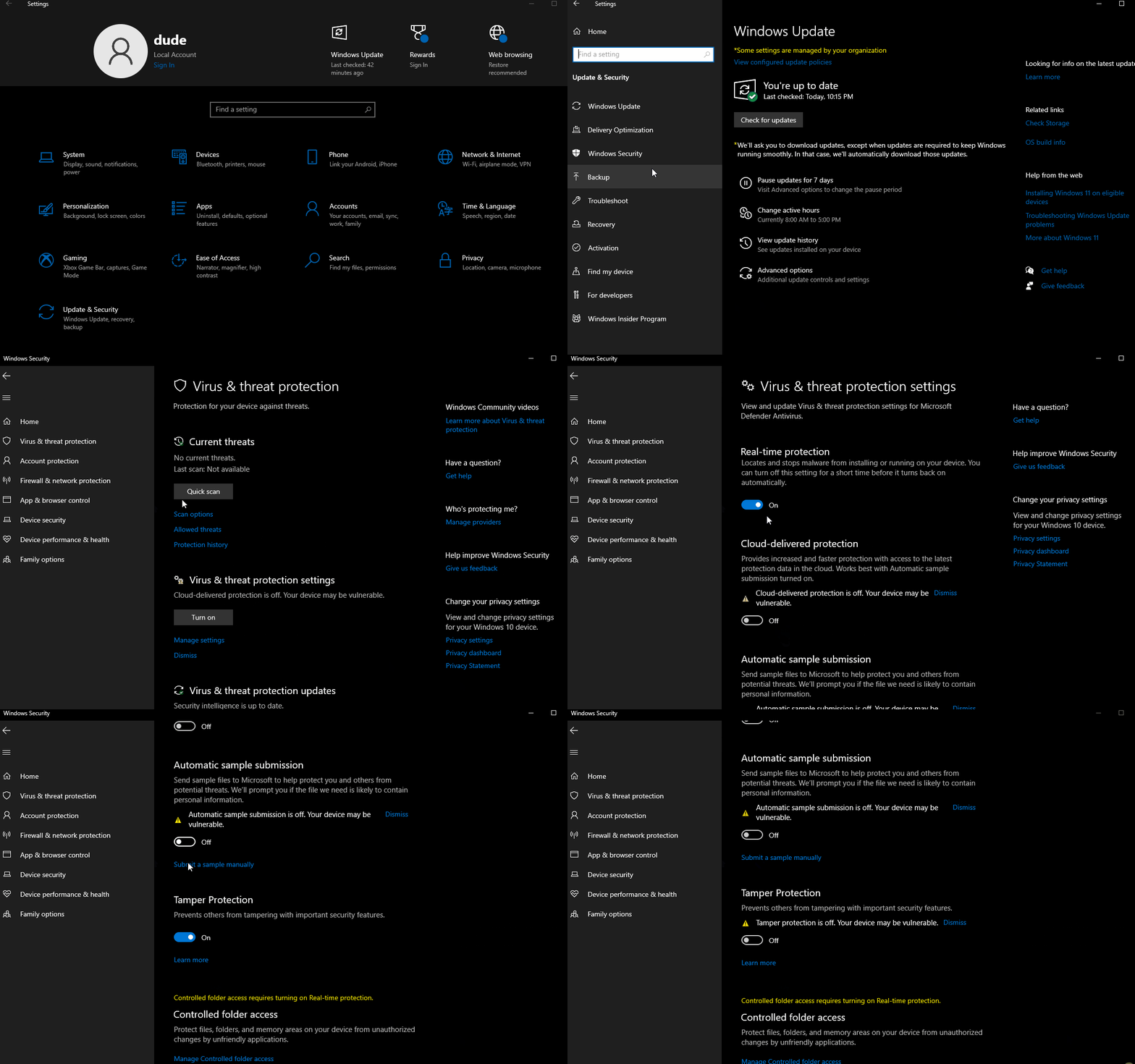
- Open Settings → Privacy & security → Windows Security.
- Open Virus & threat protection.
- Under Virus & threat protection settings, click Manage settings.
- Scroll to Tamper Protection and switch it Off.
- Approve the UAC prompt if it appears.
You only need to do this once per Windows install.
Step 3 — Disable Windows Defender With Defender Control
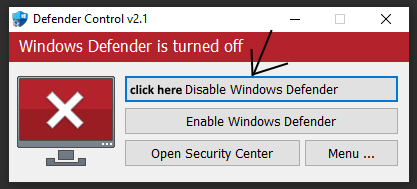
Even with Tamper Protection off, Defender's Real-time protection will keep blocking the loader. Defender Control disables Defender completely.
- Download Defender Control:
- Download Defender Control
- Password to extract the archive:
sordum
- Extract the archive and open the folder.
- Right-click
dControl.exe→ Run as administrator. - Click Disable Windows Defender.
- Wait until the app window turns red. Red = Defender is off.
- Restart your PC.
- Open the loader as administrator and try again.
Step 4 — Uninstall Third-Party Antivirus
Third-party antivirus and internet-security suites will keep flagging our products regardless of what Defender is doing. Disabling is not enough — most of them ship background services that keep scanning even when the UI shows "off". Uninstall them completely.
Common examples:
- Kaspersky
- Avast / AVG
- Norton
- Malwarebytes (including Browser Guard)
- Bitdefender
- McAfee
- ESET
After uninstalling:
- Restart your PC.
- Run the loader as administrator.
- Try again.
Step 5 — Firewall and Network
For download, update, server sync, or connection errors — these are network problems, not antivirus.
- Make sure your internet is stable.
- Try another network.
- Try a VPN — some ISPs block our endpoints:
- Cloudflare WARP (free)
- Windscribe (free tier)
- Proton VPN (free tier)
- Restart the loader as administrator.
If nothing helps, disable Windows Firewall and leave it off while you use the loader:
- Open Settings → Privacy & security → Windows Security → Firewall & network protection.
- Click your active network profile (usually Private).
- Switch Microsoft Defender Firewall to Off.
Step 6 — Fix Warnings the Loader Shows Before Spoofing
If the loader asks you to fix a Windows security item before letting you spoof, fix it and restart. Skipping any of these will fail the spoof.
Vanguard (Riot / Valorant)
- Open Settings → Apps → Installed apps.
- Find Riot Vanguard and click Uninstall.
- Restart your PC.
Vanguard reinstalls itself the next time you open Valorant, so uninstall it right before you spoof, not earlier.
FACEIT Anti-Cheat
- Open Settings → Apps → Installed apps.
- Find FACEIT AC and click Uninstall.
- Restart your PC.
HVCI / Memory Integrity
- Open Windows Security → Device security → Core isolation details.
- Toggle Memory Integrity to Off.
- Restart your PC.
If the toggle is greyed out, an incompatible driver is blocking it — Windows will list it under Review results. Uninstall that driver, then try again.
BitLocker
- Open Settings → Privacy & security → Device encryption (or BitLocker drive encryption on Windows Pro).
- Turn it Off for your system drive.
- Wait for decryption to finish.
Windows Hello PIN
- Open Settings → Accounts → Sign-in options → PIN (Windows Hello).
- Click Remove, then confirm.
- Sign in with your password from now on.
After fixing everything the loader flagged, restart your PC and try again.
What to Send Support
If the problem persists after every step, open a new ticket and include:
- The exact error code or message (screenshot the full popup).
- The product you selected in the loader.
- Which steps you completed above — Tamper Protection off, Defender Control red, third-party AV uninstalled, runtimes installed/repaired.
- Whether you restarted your PC after each step.
Attach screenshots after the ticket is created — they help support triage the issue much faster.